
+971 56 374 7479
Have Any Questions?

How to Use a Laptop Screen Extender to Enhance Productivity
Working on a laptop is convenient, but the small screen can quickly become frustrating. Picture yourself alt-tabbing between spreadsheets, emails, and documents repeatedly on a 13- inch laptop. You know how much time gets lost just navigating between windows. A laptop screen extender solves this problem by giving you extra display space.

Imagine having the same spacious, multi-monitor setup you enjoy at the office, but anywhere you go, a coffee shop, a co-working space, or your cramped home desk. That’s exactly what a laptop screen extender delivers. Instead of constantly minimizing and reopening tabs, you can see everything at once and work faster.

Adding an extra screen to your portable workstation is one of the smartest upgrades you can make to increase your productivity. Let’s explore it in detail in this guide. 

What Is a Laptop Screen Extender?


A laptop screen extender is a portable display that connects to your laptop to create a dual-screen or multi-screen workspace. Unlike traditional desktop monitors, these extenders are lightweight, compact, and designed for mobility.

They clip onto your existing laptop, connect via a single USB-C cable, and instantly give you the screen space you’ve been craving. Modern extenders typically feature Full HD resolution with IPS display technology, delivering crisp visuals and wide viewing angles whether you’re at your desk or 30,000 feet in the air

Depending on the model, you can add:

  • One additional screen for a dual-monitor setup
  • Two additional screens for a triple-monitor workspace
  • A portable monitor that can be placed beside your laptop

This means you can work with multiple applications at once without constantly switching windows.

Types of screen extenders

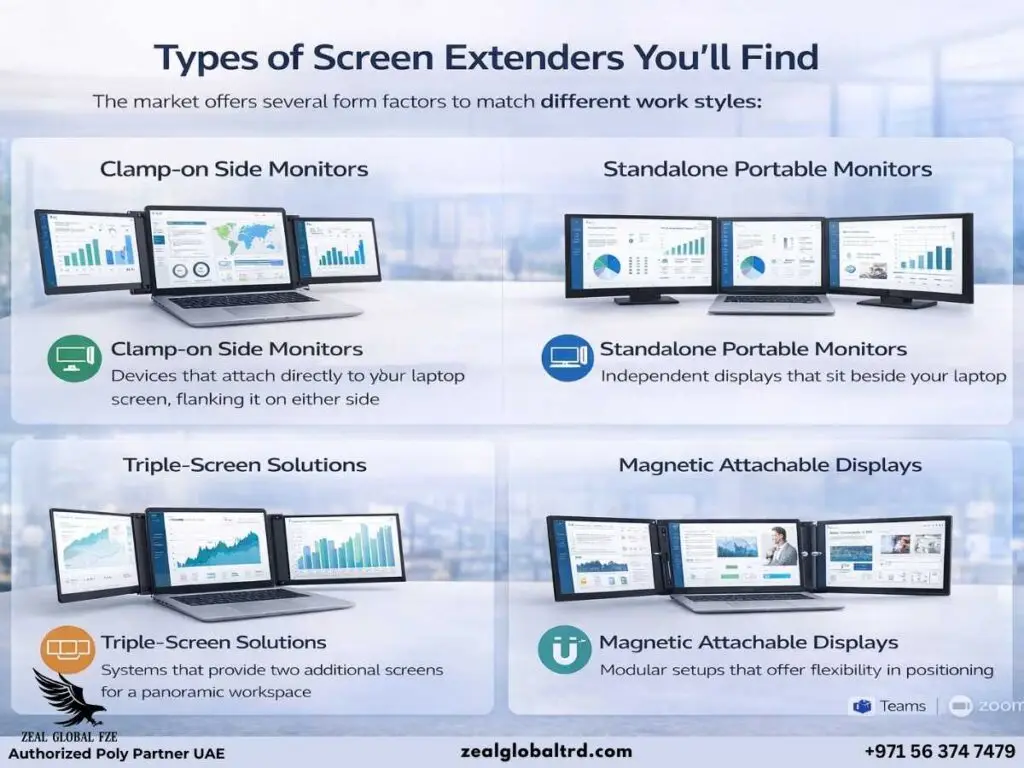
Types of Screen Extenders 

The market offers several form factors to match different work styles:

  • Clamp-on side monitors: Devices that attach directly to your laptop screen, flanking it on either side.
  • Standalone portable monitors: Independent displays that sit beside your laptop.
  • Triple-screen solutions: Systems that provide two additional screens for a panoramic workspac
  • Magnetic attachable displays: Modular setups that offer flexibility in positioning

Why Your Laptop Screen Is Holding You Back

Let’s be honest, even the most powerful laptop feels cramped when you’re deep in work mode. Research confirms what we all intuitively know: multiple displays dramatically boost productivity.

A landmark study from the University of Utah found that dual monitors increase productivity by 44% for tasks like text editing and spreadsheet work.

Another study by Peddie Research’s meta-analysis of over 1,000 users showed an average of 42 minutes saved per day, which is nearly three and a half hours per week.

The Hidden Costs of Single-Screen Work

When you’re limited to one display, you’re not just losing time, you’re paying a cognitive tax. Every time you alt-tab between windows, your brain needs to reorient itself. Every time you shrink a window to make room for another, you’re compromising readability. Over a full workday, these micro-interruptions add up to significant mental fatigue.

A compact screen gives you room to breathe. Your tasks stop competing for space and start flowing naturally alongside each other

Why Extra Screen Space Improves Productivity

Many professionals underestimate how much time is lost while switching between windows. Even a few seconds repeated hundreds of times per day adds up.

Using a laptop screen extender helps by:

1. Making Multitasking Easier

With a second screen, you can keep reference material open while working.

For example:

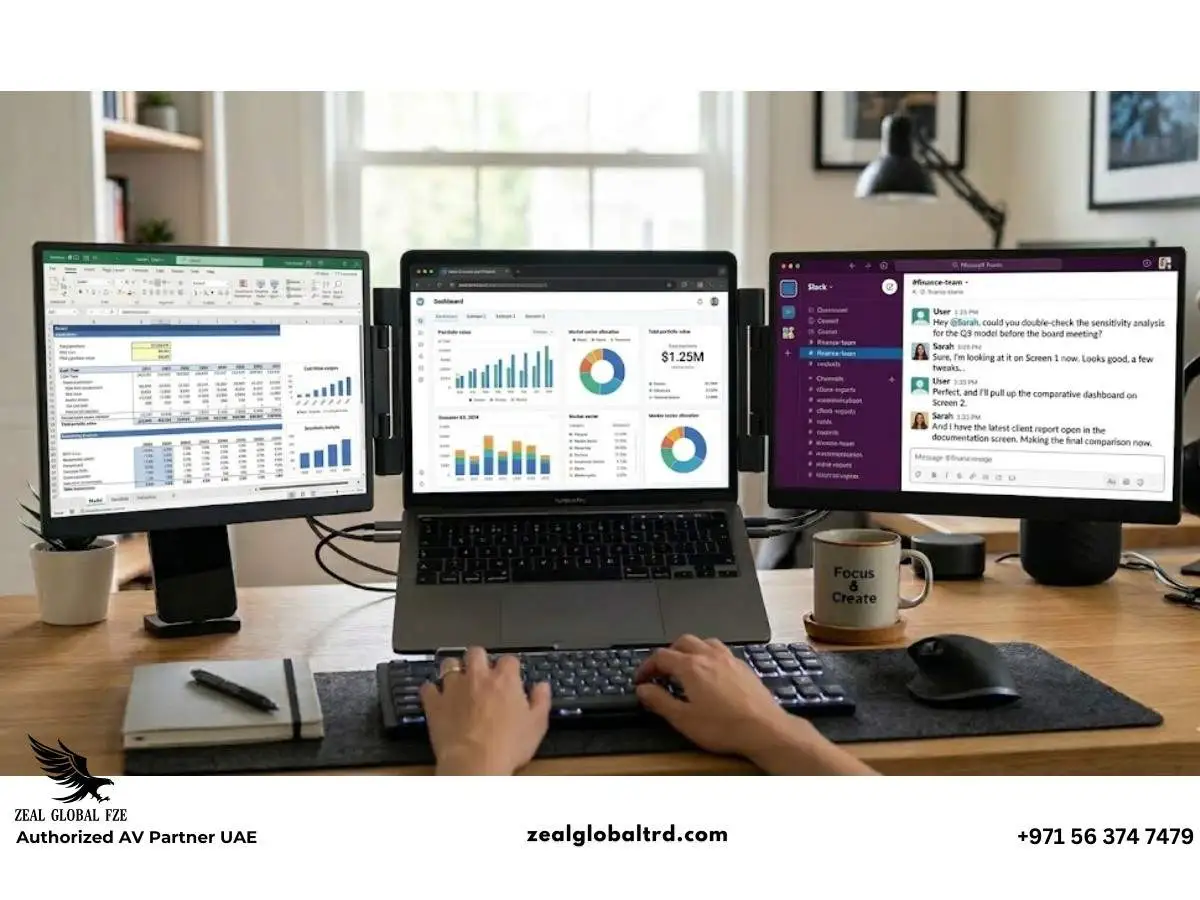
  • Spreadsheet on the main screen
  • Email or chat on the second screen
  • Browser or documents on the third screen

This eliminates the need to constantly toggle between tabs.

2. Reducing Errors


When working with data or documents, comparing information across multiple windows becomes easier when everything is visible simultaneously.

Instead of memorizing numbers from one screen and typing them into another, you can simply glance across.

3. Improving Focus


Frequent window switching interrupts your concentration. Multiple screens allow you to stay in the same workflow longer without interruptions.

4. Creating a More Comfortable Workspace


Spreading applications across screens reduces visual clutter. This improves readability and reduces eye strain during long work sessions.

How to Use a Laptop Screen Extender: Step-by-Step Setup

Setting up a screen extender is surprisingly simple. Most modern models follow the same basic setup process:

1. Check Compatibility

Ensure your laptop has a USB-C port that supports video output (often called “DisplayPort Alt Mode”). This single port will carry both the video signal and power to your extender.

2. Mount the Screens

For clamp-on models like the V2Com S2 Pro, simply attach the adjustable clamp to your laptop lid. The secure bracket holds the extra screens firmly in place without damaging your device.

3. Connect the Cables

Use the appropriate cable depending on your laptop:

  • USB-C with DisplayPort Alt Mode  carries power and video in one cable
  • HDMI  video connection (may require separate power)

4. Configure Display Settings

  • Windows: Press Windows + P and select “Extend”
  • macOS: Go to System Preferences > Displays > Arrangement
  • Chrome OS: Settings > Device > Displays

    5. Arrange Your Screens

    In display settings, drag the screen icons to match their physical positions. This ensures your mouse moves naturally between displays.

Laptop Screen Extender types

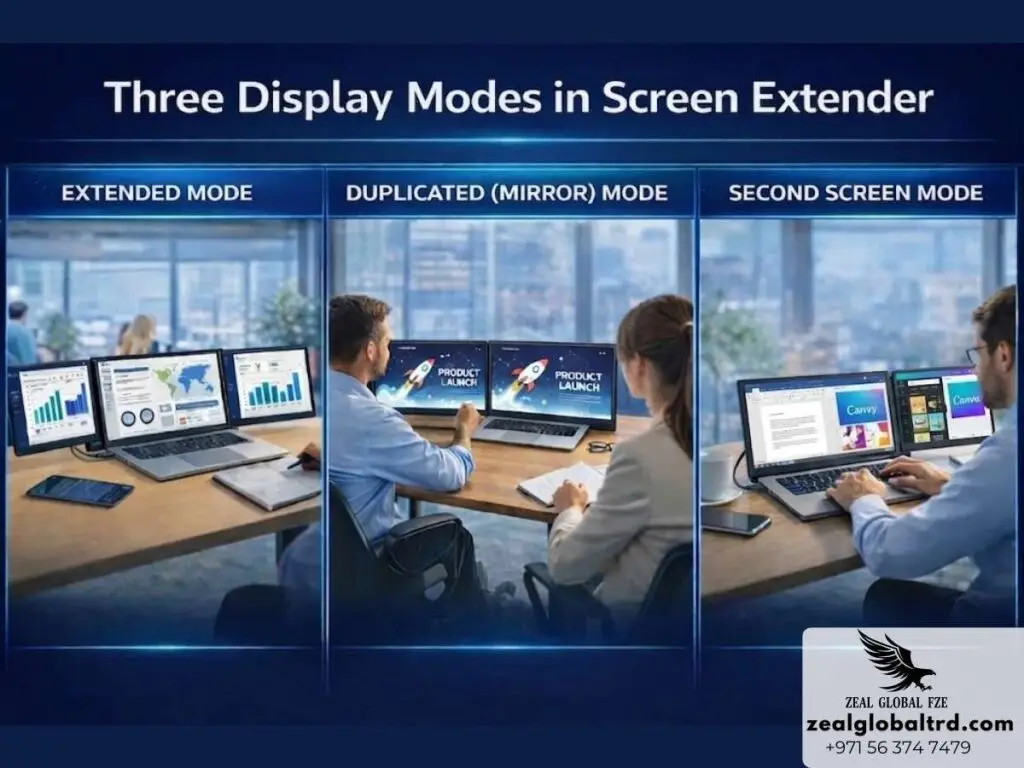
Three Display Modes

Modern screen extenders offer flexible viewing options for different scenarios:

Extended Mode

Your laptop and extender function as separate screens, giving you a true additional workspace. Keep your main task on one screen while reference materials, email, or communication tools live on the other. This is the go-to mode for serious multitasking.

Duplicated (Mirror) Mode

Both screens show identical content, perfect for presentations when you want your audience to see what you’re seeing without crowding around your laptop.

Second Screen Mode

You can designate the extender as your primary display or use it for dedicated tasks like keeping toolbars and reference docs always visible.

Best Ways to Use a Laptop Screen Extender for Work

Simply connecting a second screen is helpful, but using it strategically can dramatically improve productivity.

Here are a few practical setups.

Laptop screen extender for data analysis

For Data Analysis

Financial analysts and data professionals can spread spreadsheets across both displays, comparing figures side by side without constant scrolling. When you're working with large datasets, every inch of screen space matters. er mistakes.
Screen extender for coding professional

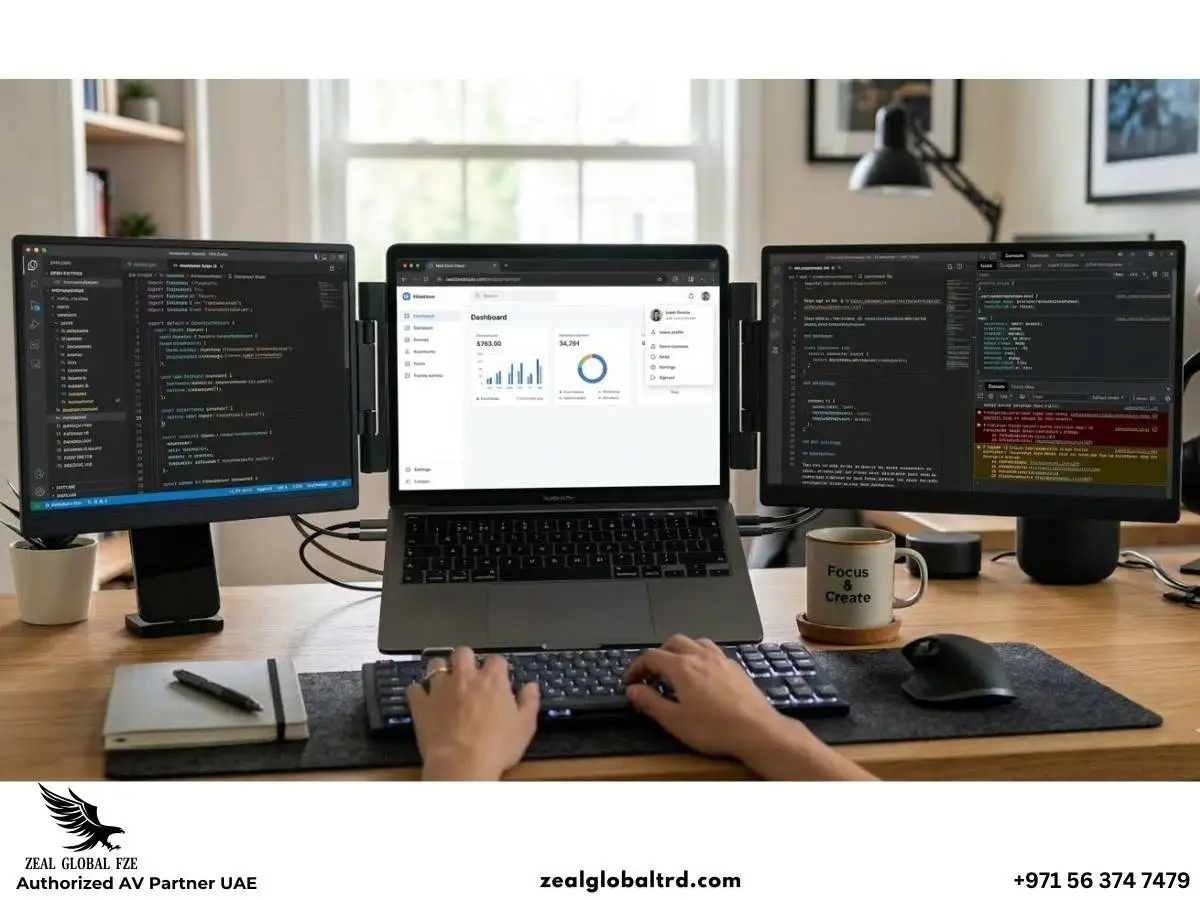
For Coding and Development

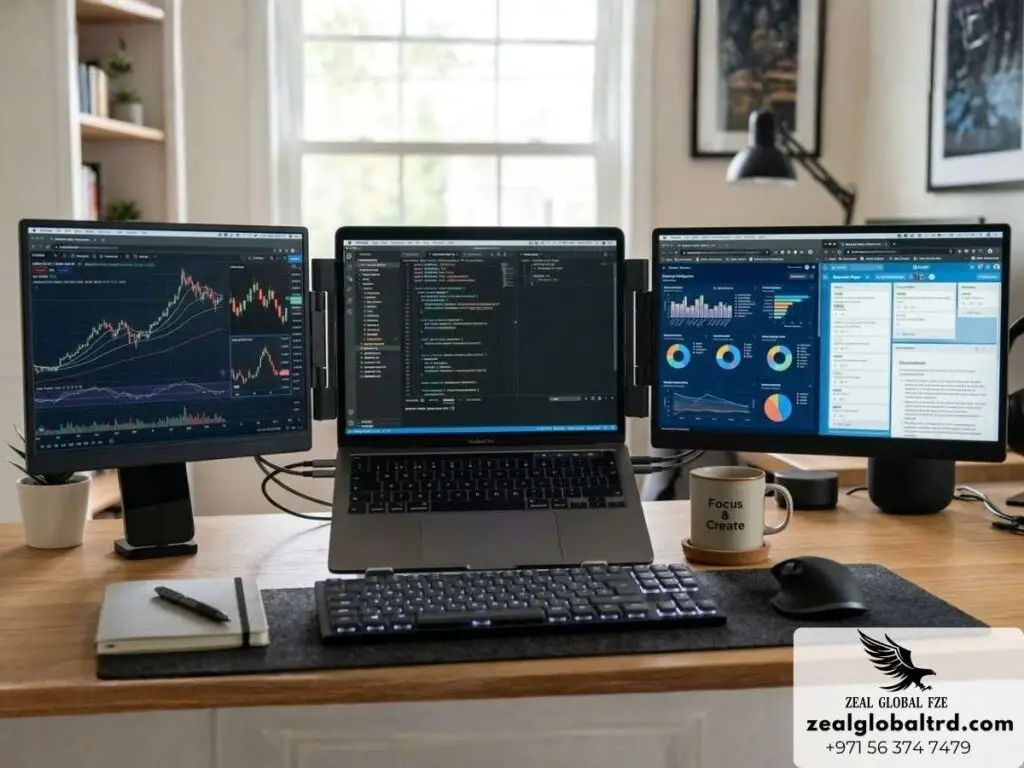
Programmers can write code on their laptop while running tests or viewing documentation on the extender. This setup minimizes context switching and helps maintain deep focus.
Laptop screen extender for editing

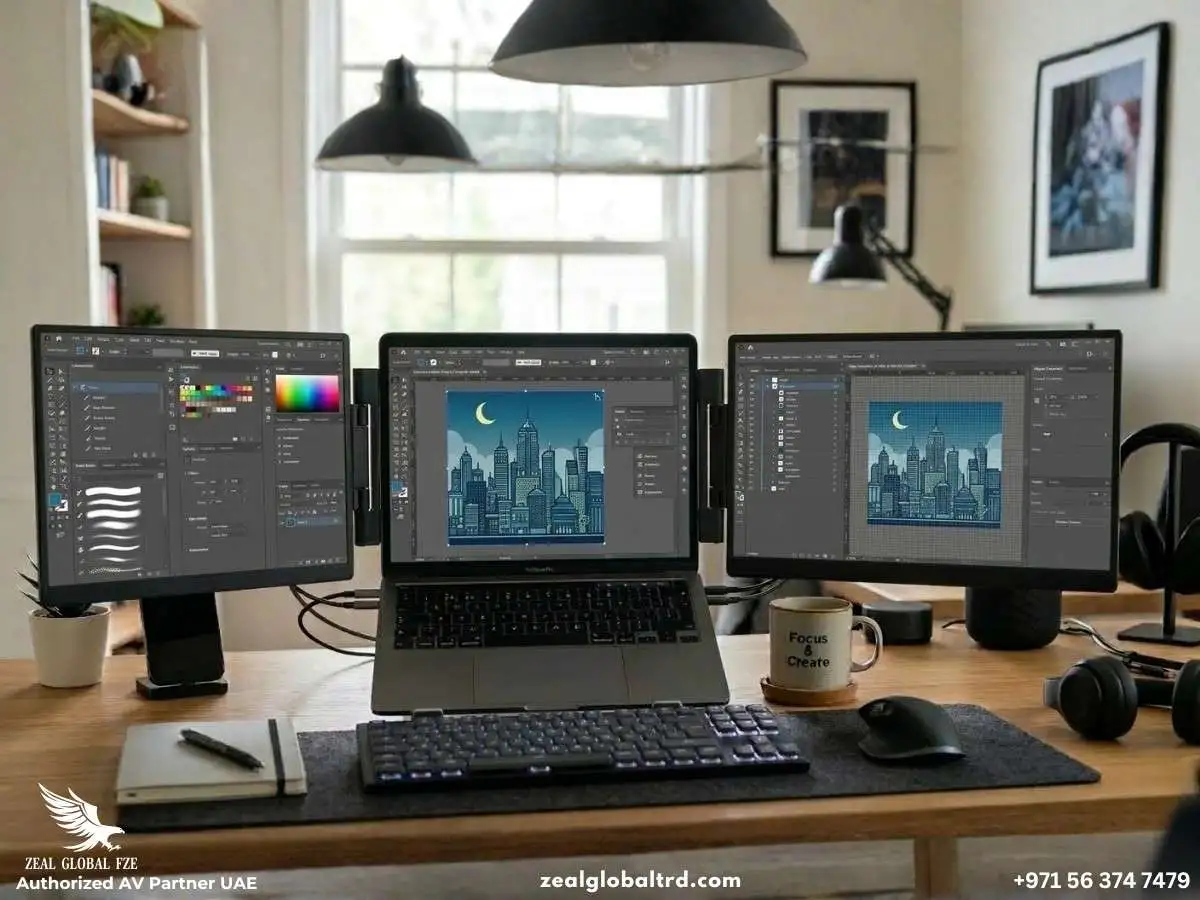
For Creative Professionals

Designers and video editors can dedicate one screen to their workspace and the other to tools, palettes, and previews. The extra real estate transforms complex projects from frustrating to fluid
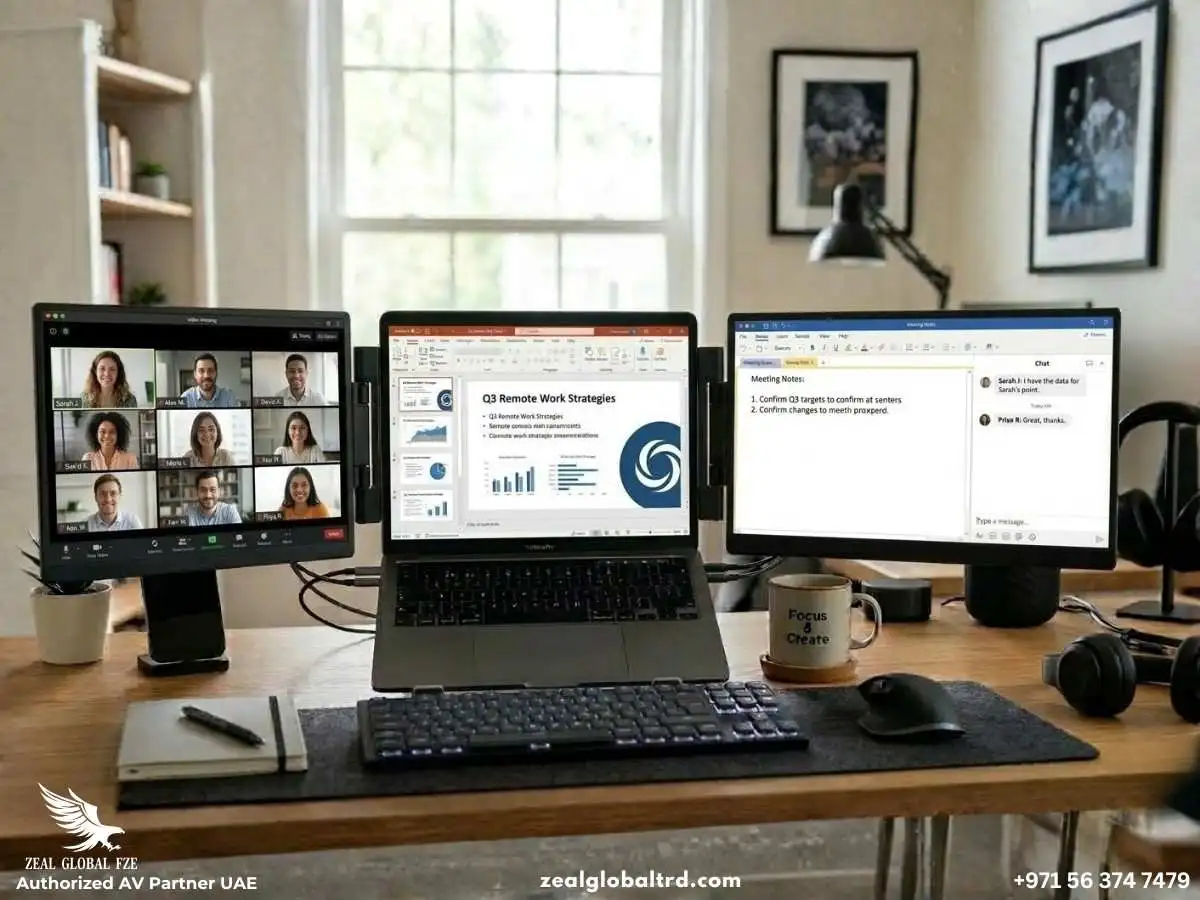
For Remote Meetings

Join video calls on your laptop while keeping notes, agendas, or presentation materials visible on the extender. You'll appear more prepared and engaged without constantly rearranging windows

Choosing the Right Laptop Screen Extender

Not all extenders are the same. The best option depends on your work style and portability needs.

Key factors to consider include:
laptop screen extender screen size

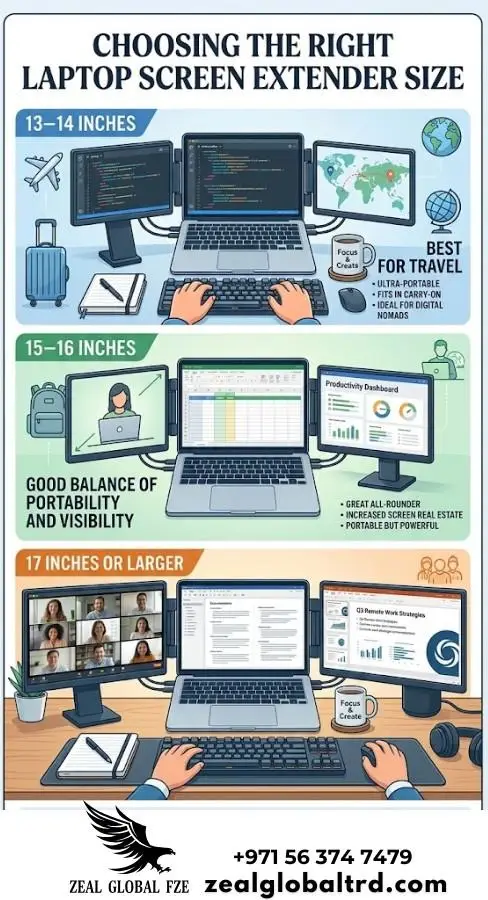
Display Size

  • 13–14 inches: Best for travel
  • 15–16 inches: Good balance of portability and visibility
  • 17 inches or larger: Ideal for desk setups

Connectivity

Make sure the extender supports your laptop’s ports:

  • USB-C
  • HDMI
  • USB-A with drivers

Resolution

  • Full HD (1920×1080) works for most office tasks.
  • Higher resolutions may benefit designers and editors.

Mounting Style

Some extenders sit beside your laptop, while others attach directly to the laptop screen.

The V2Com Screen Extender : Powerful Solutions


At Zeal Global, we’ve carefully selected the V2Com series as our recommended screen extender solutions. These devices strike the perfect balance between performance, portability, and ease of use.

V2Com S2 Pro Laptop Screen Extender 
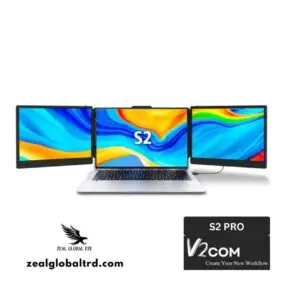
V2COM - Triple Laptop Screen Extender - Buy in UAE
The V2Com S2 Pro is our triple-screen solution for professionals who demand maximum workspace flexibility.

Who It’s For: The S2 Pro triple screen is ideal for professionals juggling multiple applications, designers needing expanded workspace, financial analysts working with complex datasets, and gamers seeking immersive portable play.

What Makes It Special: The 180° rotation and adjustable brightness, contrast, and sound settings give you complete control over your viewing experience. At just 3.57 pounds and coming with a protective carry bag, it’s built for life on the move.
Note: The S2 Pro is not compatible with Mac M1 and M2 chips due to hardware restrictions.

V2Com S8 Pro Ultra Laptop Screen Extender
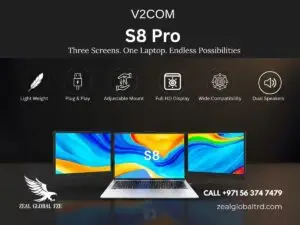
V2Com S8 Pro Triple Laptop Screen extender from Zeal Global UAE
The V2COM S8 Pro takes a different approach with its ultra-slim, dual-screen design that slides out effortlessly from your laptop.

Who It’s For: The S8 Pro triple screen is perfect for remote professionals who multitask across apps, students managing research and classes, creatives and analysts who rely on multiple screens, and gamers seeking portable immersion.

What Makes It Special: The S8 Pro screen extenders’ ultra-slim profile, just 4.5mm thick, and lightweight design (approximately 1kg per screen) make it exceptionally travel-friendly. The PD-enabled USB-C port powers the screen while charging your laptop simultaneously, one cable, no clutter.

Best Practices for Maximum Productivity


Ergonomics Matter


Use a laptop stand to align all screens at eye level. This simple adjustment prevents neck strain during long work sessions and makes your multi-monitor setup genuinely comfortable.

Mind Your Power


Running extra screens does increase battery consumption, typically by 15-30%, depending on brightness settings. Both V2Com laptop screen extender models feature efficient power management and reverse charging, but for extended use away from outlets, consider lowering brightness and closing unused applications.

Keep Drivers Updated


Ensure your laptop’s graphics drivers are current for optimal multi-display support. This is especially important for graphics-intensive tasks like video editing or 3D modeling.

Arrange Thoughtfully


In your display settings, arrange the screen icons to match their physical positions. This ensures your mouse moves naturally between displays, creating a seamless workflow rather than a disjointed experience.

Is a Laptop Screen Extender Worth It?

If you regularly multitask, the answer is almost always yes.

A screen extender:

  • Saves time switching between windows
  • Reduces errors when comparing information
  • Improves focus during complex tasks
  • Creates a more comfortable workflow

For many professionals, the productivity improvement becomes noticeable within days.

Laptops are powerful tools, but their limited screen space often restricts productivity. A laptop screen extender solves this by giving you the workspace of a multi-monitor setup without sacrificing portability.

Whether you’re working remotely, analyzing data, designing content, or managing meetings, extended displays allow you to stay organized and focused.

Solutions like the V2Com S2 Pro and V2Com S8 Pro make it easy to create a portable multi-screen workstation wherever you work.

Why Choose Zeal Global? 

At Zeal Global, we help businesses and professionals design smarter workspaces with reliable IT and productivity solutions.

If you’re also looking to build more efficient collaboration spaces for your teams, explore our meeting room solutions in Dubai and discover how the right technology can transform the way your teams work and collaborate.

Most modern laptops with a USB-C port that supports video output will work seamlessly. The V2Com S2 Pro fits laptops from 13.3″ to 17.3″ and works via USB-C + HDMI connections. For the S8 Pro, compatibility extends to Windows, macOS (with adapter for M-series chips), Linux, Android, and gaming consoles.

No, both V2Com models are plug-and-play for basic use. Simply connect via USB-C and HDMI, and you’re ready to go

Yes. The V2Com S8 Pro’s adjustable stand allows flexible screen positioning, including vertical orientation perfect for coding, long documents, or social media management

This typically indicates connection or power issues. Check that all cables are securely connected to your laptop’s USB-C port. For HDMI connections, ensure the separate power cable is connected supports video output.

Leave a comment

Your email address will not be published. Required fields are marked *

Cart (0 items)
Zeal Global UAE Logo

Contact Info

+971 56 374 7479
+971 6 883 6988
info@zealglobaltrd.com

Office Address

Zeal Global Trading FZE Ajman Free Zone,
Office-C1 – 1016 C, Ajman,
United Arab Emirates