

How to Set Up Your Headset for Zoom vs Microsoft Teams at Home
You’ve bought a decent headset. You’ve plugged it in. But somehow, callers still say you sound “far away” or there’s a strange echo on your end. Maybe your mic isn’t even being detected by Teams.
The headset itself might be fine. The problem is usually in the settings, and Zoom and Microsoft Teams don’t handle audio devices the same way. A few quick adjustments can make a real difference in how you sound to colleagues and clients.
This guide walks you through setup tips for both platforms, explains why a USB dongle often outperforms Bluetooth at home, and includes a practical fix-list for echo, one of the most common and most frustrating audio problems in small home offices.
Already shopping for a headset? See our full ranked list: Best Noise Cancelling Headset with Mic for Working from Home.
How to Set Up Your Headset in Microsoft Teams
Microsoft Teams is more particular about audio devices than many other meeting platforms. Taking a few minutes to configure the settings correctly can prevent frustrating issues during important calls.
Before making changes, ensure your headset is connected and powered on.
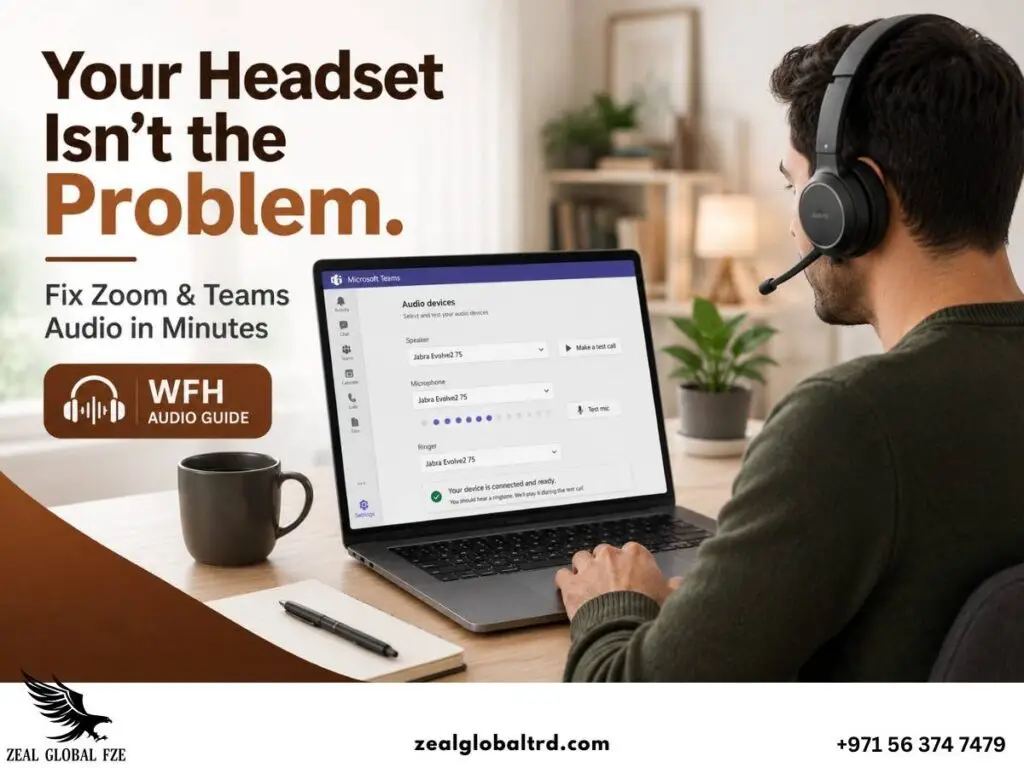
Step 1: Select Your Headset for All Audio Functions
Open:
Teams → Settings → Devices
You’ll see separate options for:
- Speaker
- Microphone
- Ringer
Select your headset for all three.
One of the most common mistakes is routing audio to the headset while leaving the microphone set to the laptop’s built-in mic. This often causes the “you sound far away” complaint because Teams is picking up your voice from across the desk.
Step 2: Adjust Microphone Sensitivity
Navigate to Audio Settings and check how Teams is managing microphone levels.
If you’re using a professional headset such as:
- Jabra Evolve2 75
- Jabra Evolve2 55
- Poly Voyager 4320
- Yealink BH70
the headset already contains advanced microphone processing. In many cases, disabling automatic microphone adjustments provides more consistent voice quality.
Step 3: Configure Noise Suppression
Go to:
Settings → Devices → Noise Suppression
Options typically include:
- Auto
- Low
- High
If you work in a noisy environment with children, pets, traffic, or household activity, High can help.
For quieter home offices, Auto usually provides a more natural voice sound.
Step 4: Run a Test Call
Before an important meeting, use:
Settings → Devices → Make a Test Call
Teams records and plays back your voice so you can hear exactly what other participants will hear.
Thirty seconds of testing can prevent thirty minutes of audio frustration.
Why Teams-Certified Headsets Matter
A Teams-certified headset doesn’t just “connect” to Teams. It integrates.
- That means the mute button on your headset syncs with the mute indicator in Teams.
- The call answer/reject button works.
- The busy-light on your headset turns on when you’re in a meeting.
- And the dedicated Teams button (if your headset has one) opens the Teams app instantly.
None of these features work reliably with non-certified headsets. You end up in situations where you think you’re muted but Teams doesn’t register it, or your headset’s call controls don’t match what Teams expects. These sound like small annoyances until they happen during a client call.
For users who spend several hours daily in Teams meetings, certification can make the experience significantly smoother.
Certified headsets from this list include the Jabra Evolve3 75, Poly Voyager 4320 UC, Yealink BH70, Jabra Evolve2 55, and Poly Blackwire 8225.
How to Set Up Your Headset in Zoom
Zoom is generally more forgiving with non-certified headsets, but it has its own quirks worth knowing.
A quick review of your settings can improve audio quality and reduce call interruptions.
1. Manually select your headset.
Click the small arrow next to the microphone icon during a call, or go to
Settings → Audio
Choose your headset for:
- Speaker
- Microphone
Zoom sometimes defaults to your laptop’s internal mic even when a headset is plugged in, especially on Mac. Don’t assume it auto-detected correctly.
Step 2: Review Automatic Microphone Adjustment
Zoom’s “Automatically adjust microphone volume” setting tends to work reasonably well for most headsets, unlike Teams’ version.
But if you notice your mic volume jumping around during calls, louder when you’re quiet, softer when you talk normally, disable it and set a manual level instead.
Test with Settings → Audio → “Test Mic” to find the right balance.
Step 3: Configure Background Noise Suppression
Zoom offers 4 suppression levels:
- Auto
- Low
- Medium
- High
For most home offices:
- Auto works well in quiet environments.
- Medium works well for moderate background noise.
- High works best when there is significant household activity.
Avoid using aggressive suppression unless necessary because it can slightly alter voice quality.
Step 4: Enable High-Fidelity Audio When Needed
In Settings → Audio, check “High Fidelity Music Mode” for richer audio quality.
This is more useful during presentations, webinars, and screen-sharing sessions than regular calls, but it makes a noticeable difference with higher-end headsets like the Jabra Evolve3 75 or Poly Voyager Surround 85 UC.
Step 5: Test Before Joining Meetings
Use:
Settings → Audio → Test Speaker and Microphone
Verify everything works before the meeting starts. If you hear your own voice clearly and without echo in the test, you’re good.
Bluetooth vs USB Dongle Headsets: Which Is Better for Work From Home?
This is one of the most common questions we get from remote workers, and the answer matters more in a home environment than most people realise.
The Home Wi-Fi Problem
Corporate offices have managed Wi-Fi networks with separate channels and minimal interference. Your home doesn’t.
Your Wi-Fi router, smart TV, partner’s laptop, Bluetooth speakers, baby monitor, and your neighbour’s Wi-Fi are all competing for the same 2.4 GHz band, and standard Bluetooth operates on that same frequency.
In most cases, this coexistence works fine. But in busy wireless environments, especially apartments in Dubai, Sharjah, or Abu Dhabi, where multiple neighbours’ signals overlap, it can cause brief audio dropouts on calls, slight voice delay, or occasional Bluetooth disconnections mid-meeting.
Why USB Dongles Perform Better
Professional headsets like the Jabra Evolve3 75 , Poly Voyager Focus 2 , Poly Voyager 4320 UC, and Yealink BH70 ship with dedicated USB Bluetooth adapters such as
- Jabra Link adapters
- Poly BT700 adapters
These create an optimized connection specifically for voice communication.
Benefits include:
More stable connection. The dongle uses a protocol specifically tuned for real-time audio, reducing dropouts.
Lower latency. Your voice reaches callers with less delay, eliminating the awkward half-second lag that makes people talk over each other.
Better range. The Jabra Link 390 gives you 30m of stable coverage. The Poly BT700 reaches 50m. Standard Bluetooth is more variable.
Automatic reconnection. Plug the dongle in, headset connects instantly. No manual pairing, no Bluetooth settings menu, no “searching for device…” wait. This is where consumer headphones like the Sony WH-1000XM5 (Bluetooth-only, no dongle option) often cause frustration on work laptops.
Quick Recommendation
Use:
- USB dongle for your laptop
- Bluetooth for your mobile phone
Most professional wireless headsets support both simultaneously, so you don’t have to choose.
If you’re currently experiencing audio dropouts and you’ve been using standard Bluetooth on your laptop, switching to the included dongle is often the single easiest fix.
How to Fix Echo During Zoom and Teams Calls
Echo is the other common audio complaint, and it’s uniquely frustrating because you often can’t hear it on your end. Your callers hear everything twice while you think everything sounds fine
Why Small Home Offices Create Echo
There are two main causes.
Room Echo:
Sound bounces off hard surfaces. In a small room, a spare bedroom, study nook, or converted dining area, has below problems:
- Tile flooring
- Bare walls
- Glass windows
- Minimal furniture
- Very little soft material to absorb reflections.
Your voice hits the wall, bounces back, and gets captured by your mic as a faint, delayed copy.
Headset Audio Leakage:
When sound from your headset’s speakers leaks out and gets recaptured by the microphone.
This is more common with on-ear headsets and at higher speaker volumes.
7 Practical Ways to Eliminate Echo
Most echo issues can be fixed quickly.
1. Reduce Headset Volume
Lower speaker volume by around 15-20%. This is the single most effective fix and solves the problem immediately and costs nothing.
2. Use a Headset with a Noise-Cancelling Microphone
Every headset on our full ranked list includes mic noise cancellation, from the Jabra Evolve3 75’s six-microphone ClearVoice array to the Poly Voyager 4320 UC’s Acoustic Fence boom mic.
These actively filter out reflected sounds before they reach your callers.
3. Add soft materials to your room.
You don’t need acoustic panels. Try adding:
- A bookshelf full of books
- A rug on a hard floor
- Curtains over a window
- Cushion on your chair
Even placing a towel over a hard surface near your desk can help. These absorb sound and reduce reflections.
4. Avoid sitting with a bare wall right behind your screen.
Sound bounces between the wall behind your monitor and the wall behind your head, creating “flutter echo.” Move your desk 30 cm away from the wall if possible, or hang something soft on the wall behind your screen.
5. Close the door
Blocks echo from adjacent rooms and hallways. Also reduces household noise feeding into your mic.
6. Enable Software Echo Cancellation
Teams enables it automatically.
In Zoom, check
Settings → Audio → “Echo cancellation.”
is set to “Auto.”
This is a cleanup tool, it won’t fix severe echo, but it handles mild cases.
7. If echo persists, switch to an over-ear headset
Over-ear models seal around your ears, so less speaker sound escapes to the mic. The Poly Voyager Surround 85 UC, Yealink UH48 wired, or Poly Blackwire 8225 all provide strong speaker isolation.
Most people solve echo at step 1 or 2. Steps 3-5 are for stubbornly reflective rooms. And step 7 is for extreme cases where on-ear designs just can’t contain the speaker output.
Quick Settings Cheat Sheet
| Setting | Microsoft Teams | Zoom |
|---|---|---|
| Audio device selection | Settings → Devices (Speaker, Mic, Ringer) | Settings → Audio (Speaker, Mic) |
| Noise suppression | Settings → Devices → Noise suppression | Settings → Audio → Suppress background noise |
| Auto mic adjustment | Turn OFF | Usually fine ON, disable if erratic |
| Test call / Test mic | Settings → Devices → Make a test call | Settings → Audio → Test Speaker / Test Mic |
| Echo cancellation | Automatic (always on) | Settings → Audio → Echo cancellation → Auto |
| HD Audio | N/A | Settings → Audio → High Fidelity Music Mode |
Teams is stricter about device compatibility. If your headset isn’t Teams-certified, you may experience mic detection issues, mute sync failures, or audio dropouts that don’t happen on Zoom. Check the Microsoft Teams certified devices list to verify your headset’s certification status. If it’s not certified, using the USB dongle (instead of Bluetooth) often improves reliability on Teams.
Yes. They work at different stages of the audio process and generally complement each other. For the best balance, keep Teams on Auto unless your environment is particularly noisy
If the headset performs well in another room, the issue is likely your environment rather than the headset itself. Adding soft furnishings and reducing speaker volume usually helps.
Most professional headset dongles come in both USB-A and USB-C variants. Check which version came with your headset. If you have the wrong one, a simple USB-A to USB-C adapter works fine, or contact the manufacturer for the correct variant. The Jabra Evolve3 75 and Poly Voyager 4320 UC both offer USB-C dongle options.
Final Takeaway
A high-quality headset alone won’t guarantee great call quality.
The right settings matter just as much.
By configuring your headset correctly in Zoom and Microsoft Teams, using a USB dongle where possible, and making a few simple adjustments to your home office, you can eliminate most audio issues before they affect important meetings.
If you’re still struggling with call quality or choosing the right headset for your setup, explore professional headset solutions designed specifically for Zoom, Microsoft Teams, and hybrid work environments. The right combination of hardware and settings can make every meeting sound clearer, more professional, and far less stressful.
Need help choosing a headset that works perfectly with your platform? At Zeal Global, we help businesses across the UAE and Middle East find UC certified headsets that integrate seamlessly with Teams, Zoom, and Google Meet.